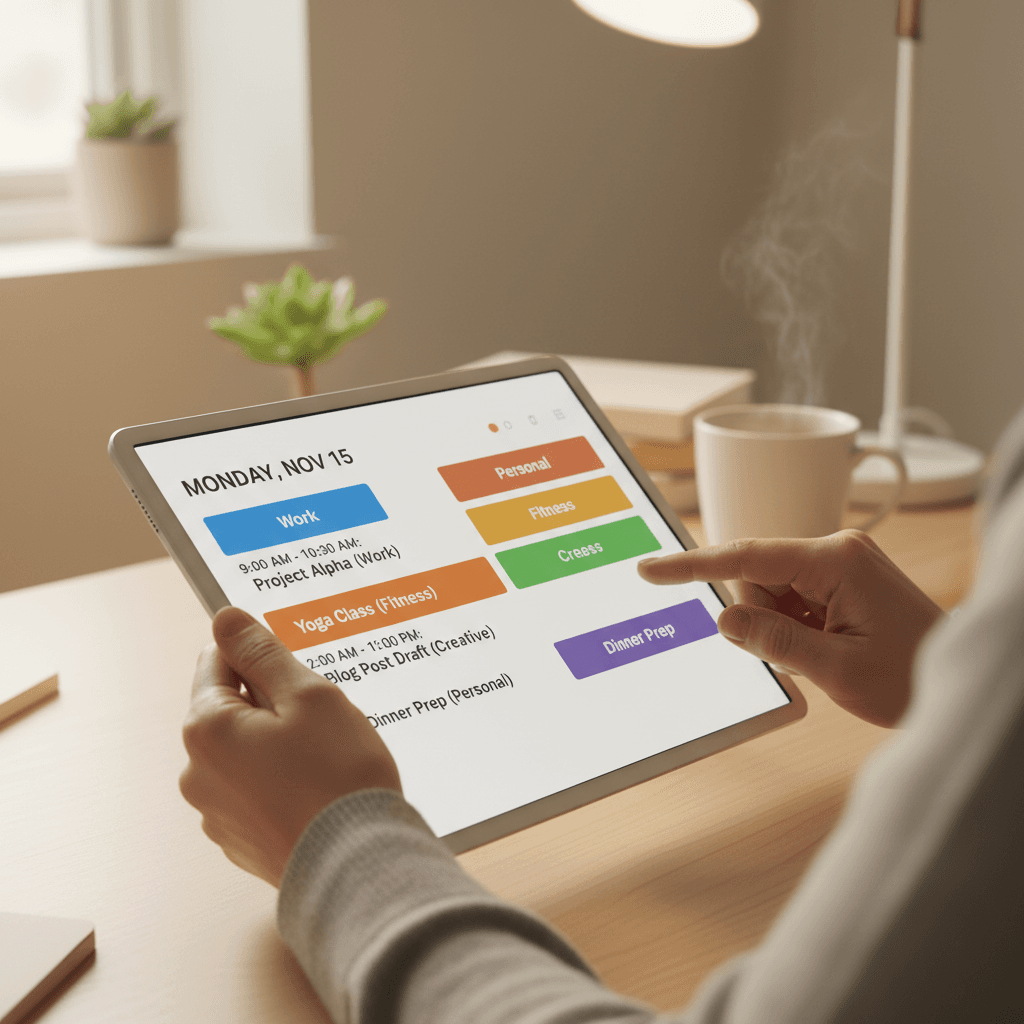
You can master how to use a digital planner by selecting a compatible note-taking app and importing a hyperlinked PDF template to your preferred device. Successful organization requires setting up specific sections for daily and monthly goals while syncing the data across your phone and computer for constant access. Regular updates and consistent check-ins will help you stay productive and make the most of your digital planning system.
You have likely experienced the frustration of a cluttered desk and a paper planner that feels more like a burden than a functional tool. While physical planners offer a tactile charm, they often lack the dynamic flexibility required for a modern, high performance lifestyle. Transitioning to a digital format is not just about moving your notes to a screen; it is about reclaiming your time through a sophisticated and infinitely adaptable system. In this ultimate guide, we will walk you through setting up your ideal tech stack and importing your EASYWAVE CREATIONS planner with precision. You will discover practical strategies for maintaining consistency, mastering navigation, and personalizing your digital space with curated templates and stickers. Whether you are a tech novice or a digital native, these insights will help you overcome common hurdles and achieve the seamless organization you deserve.
The Evolution of Organization: Why Transition to a Digital Planner?
The transition from traditional paper journals to digital interfaces represents more than just a change in medium; it is a fundamental upgrade in how we manage our cognitive load. For many, the 'Planner Graveyard' is a familiar sight. It is that shelf of half-finished, beautiful leather-bound books purchased with the best intentions but abandoned within weeks because they became a physical burden. Digital planning eliminates this friction.
By choosing digital planners, you gain instant searchability and the ability to synchronize your schedule across every device you own. This is particularly vital for Houston professionals navigating long commutes or creatives balancing multiple project sites. If you are integrating business templates into your workflow, having your entire life accessible on a tablet means you are never without your critical data.
Making the switch requires a psychological shift. You are moving from the tactile feedback of paper to the limitless flexibility of pixels. While you lose the physical thickness of a book, you gain a zero waste system that allows for infinite corrections without messy white-out. Understanding how to use a digital planner effectively means embracing this convenience. This guide focuses on bridging that gap, ensuring your organizational tools move as fast as your Houston lifestyle requires.
Setting Up Your Tech Stack for Digital Success

To effectively bridge the gap between paper and screen, you must assemble a reliable hardware and software ecosystem. Think of your EASYWAVE CREATIONS digital planners as the vehicle, while your chosen PDF annotation app serves as the engine that powers its interactive features. Without the right stack, you lose the fluid experience that makes digital organization superior to traditional methods.
Your hardware foundation requires a tablet with sufficient processing power and a compatible stylus. The iPad paired with an Apple Pencil is the industry standard for professionals, but the Samsung Galaxy Tab with its S Pen offers a highly responsive alternative for those within the Android ecosystem. The stylus is non negotiable if you want to retain the cognitive benefits of handwriting, which significantly aids in memory retention and creative flow.
The software you choose determines how you interact with your planner daily. Three primary apps dominate the market: GoodNotes, Notability, and Xodo.
App | Best For | Handwriting vs. Typed Text |
|---|---|---|
GoodNotes | Organization & Customization | Superior handwriting engine with searchable ink; best for aesthetic layouts. |
Notability | Versatility & Audio | Smooth, fluid writing; excels at syncing audio recordings with your written notes. |
Xodo | Cross-platform Utility | Excellent for typed text and high performance on Android, Windows, and web browsers. |
GoodNotes and Notability are ideal if you prefer the artistic, hand drawn feel of a traditional diary. If your workflow involves heavy data entry or you prefer using a Bluetooth keyboard, Xodo provides robust support for text boxes and form filling. These apps allow you to interact with the underlying code of our business templates, making every hyperlink and tab functional and responsive.
How to Import and Navigate Your EASYWAVE CREATIONS Planner
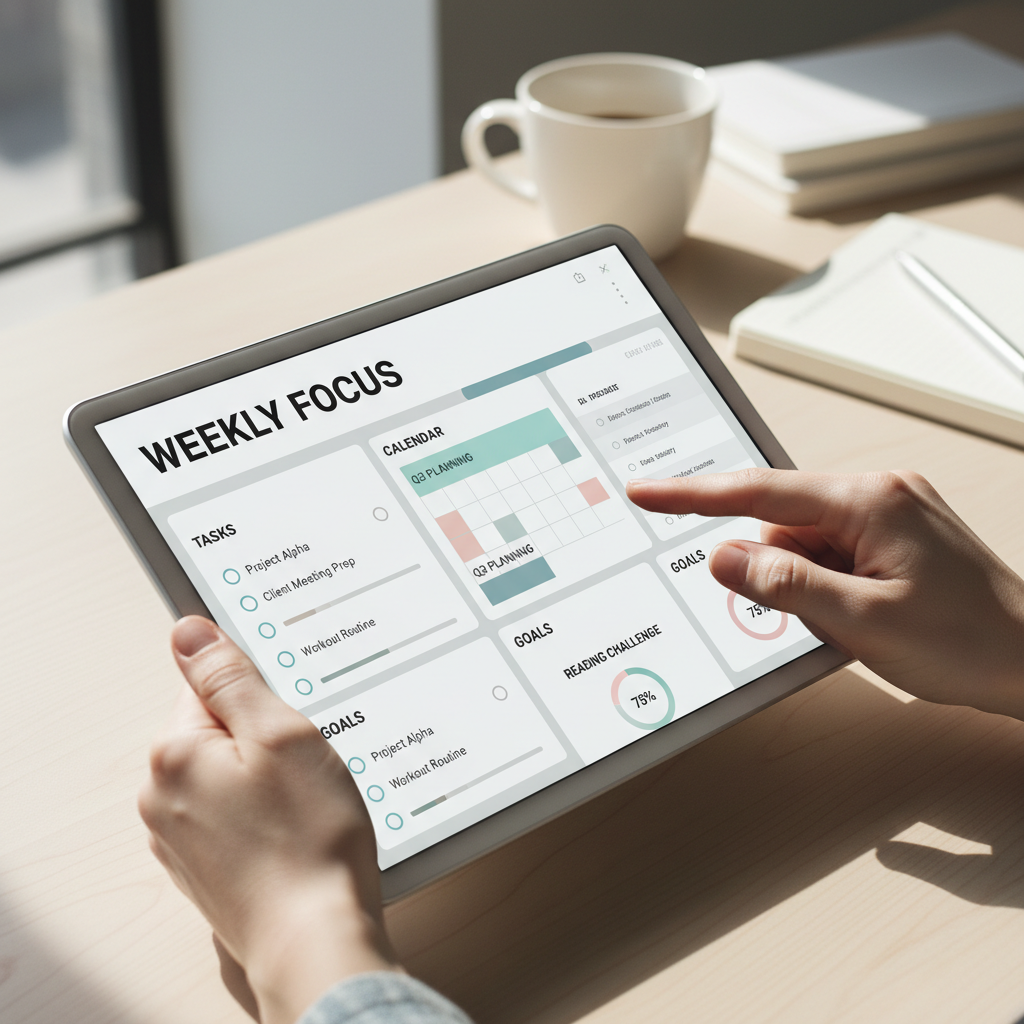
Once your hardware and software are ready, the next step in learning how to use a digital planner is the import process. After purchasing your digital planners from EASYWAVE CREATIONS, you will receive a secure download link via email. Download the PDF file directly to your tablet’s local storage or a cloud service like iCloud or Google Drive. Within your chosen annotation app, select the Import or Plus icon, navigate to your file, and open it to begin your setup.
A common point of confusion for new users involves the interaction between writing and navigating. In apps like GoodNotes, there is a specific toggle between Read-Only and Editing modes. If you find that your hyperlinks are not responding, you are likely in Editing mode, where the app prioritizes your stylus input for handwriting or drawing. To activate the navigation links, tap the pen icon, usually located in the top right corner, to switch to Read-Only mode. This simple toggle is the key to moving fluidly through your schedule without technical friction.
EASYWAVE CREATIONS products are essentially intelligent PDFs. Unlike a traditional notebook where you must flip through hundreds of physical pages to find a specific date, these planners use embedded code to create a seamless digital map. By tapping a specific date on a monthly calendar, the document immediately renders the corresponding daily page. This functionality is also present in our business templates, where integrated navigation ensures you can move from high level project overviews to granular task lists in a single tap, saving valuable time during a busy workday.
Mastering the Habit: Five Strategies to Actually Stick With It
Moving from the technical setup to daily execution requires a shift in mindset. Owning a high performance tool is only half the battle; the true value of your EASYWAVE CREATIONS purchase is realized through consistent daily engagement. Transitioning your focus from a chaotic inbox to a structured interface requires intentionality and a few proven behavioral strategies.
Leverage Habit Stacking. To master how to use a digital planner, anchor your planning session to an existing routine. James Clear’s concept of habit stacking suggests attaching a new behavior to an established one. For example, open your tablet immediately after pouring your first cup of morning coffee or right after you set your evening alarm. By pairing the planner with a physical anchor, you reduce the mental energy required to start the task.
Create a Digital Sanctuary. Tablets are multifaceted devices prone to distraction. Before you begin your daily review, toggle on Focus Mode or manually disable non-essential notifications from social media and messaging apps. This ensures that your planning time remains a period of deep work and reflection, rather than another source of digital noise that competes for your attention.
Implement the Daily Top 3. Over-planning is a primary cause of productivity burnout. Instead of populating your digital planners with an exhaustive 20 item list, identify three non negotiable tasks that will move the needle for your business or personal life. If you complete these, everything else is a bonus. This strategy maintains momentum and prevents the frustration of migrating long lists of incomplete tasks from one day to the next.
Gamify Your Progress with Digital Stickers. Unlike paper planners where mistakes feel permanent, digital interfaces allow for playful, low stakes creativity. Use digital stickers to mark milestones or categorize tasks visually. This is not just for aesthetics; it provides a visual reward that encourages the brain to engage with the tool daily, making the habit more sustainable over time.
Integrate Strategic Growth. Use your planner to carve out dedicated time for professional development. If you are working through our educational ebooks or refining your professional workflow with business templates, schedule specific blocks for these activities within your daily view. Viewing your planner as a hub for growth rather than just a checklist transforms it into an indispensable personal asset.
Customizing Your Space with Digital Stickers and Templates
One of the most powerful features in modern annotation apps is the Lasso Tool. This tool acts as the digital equivalent of a magic wand; it allows you to circle any element on the page, such as handwriting, images, or stickers, and reposition or resize them instantly. If your schedule changes, you simply lasso the block of text and drag it to a new time slot without erasing or leaving marks. This flexibility is a core component of learning how to use a digital planner effectively because it removes the fear of making mistakes and allows for a fluid, evolving layout.
Digital planning also introduces a level of efficiency through the copy and paste function. There is no need to manually rewrite recurring weekly chores or standard meeting structures. You can select a perfectly formatted list from the previous week and drop it into the next, ensuring consistency while saving hours of repetitive labor. This method turns your planner into a living document that grows more efficient the more you use it.
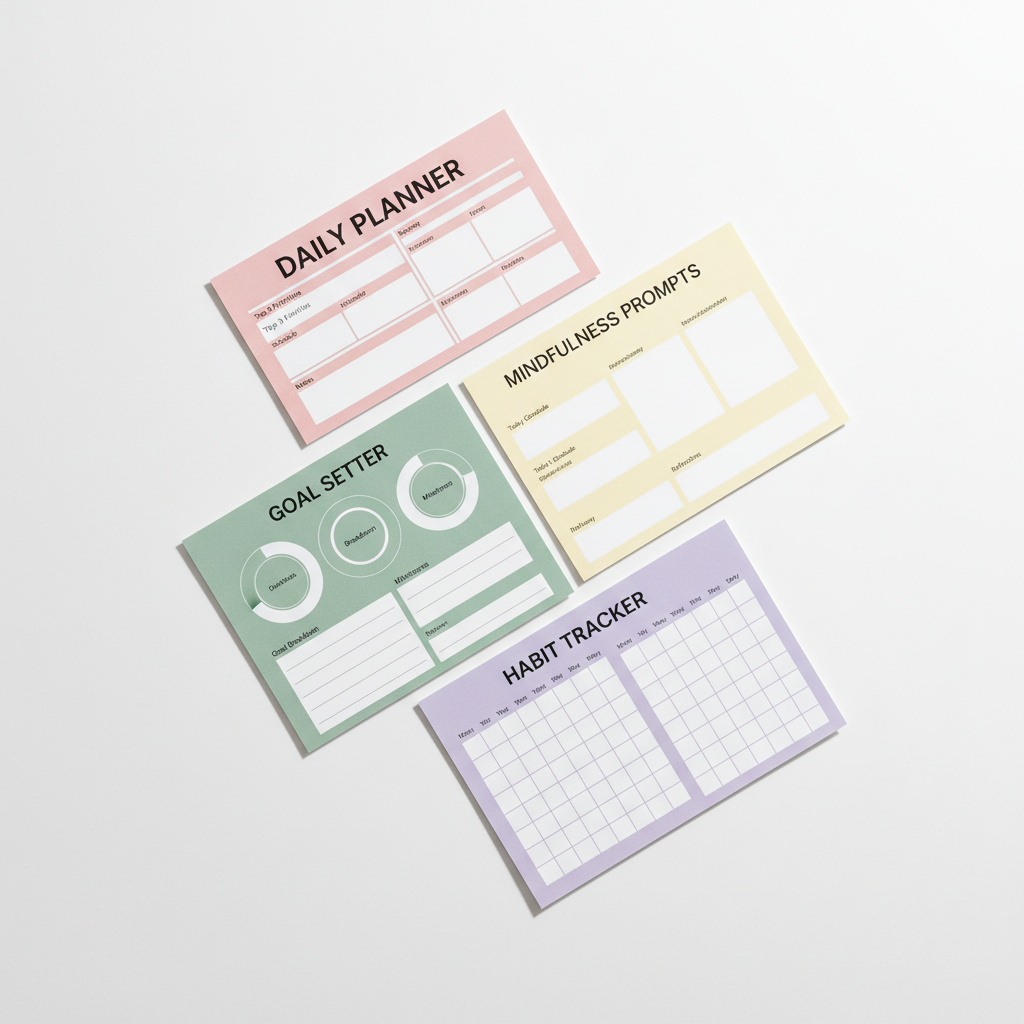
For entrepreneurs, this customization extends to merging various workflows. By integrating business templates directly into your digital planners, you create a unified command center. You can insert a specialized project tracker or a financial log right between your daily schedule and personal habit tracker. This holistic approach ensures that your professional goals and personal health remain in focus simultaneously, rather than being siloed in separate notebooks. Use this space to experiment with layouts that match your unique cognitive style and Houston-based business demands.
Overcoming Common Digital Planning Hurdles
Even with the most intuitive digital planners, technical or physical roadblocks can occasionally interrupt your flow. Addressing these hurdles proactively ensures your organizational system remains a source of clarity rather than frustration. One of the most frequent questions involves multi device synchronization. To view your planner on both an iPad and an iPhone, ensure your annotation app is connected to a primary cloud service like iCloud, Google Drive, or OneDrive. Within the app settings, enable Auto Sync or iCloud Syncing. This allows you to update your schedule on your tablet at home and check your tasks on your phone while navigating your daily commute.
Digital security is equally important. To prevent data loss if your hardware malfunctions, set up a weekly cloud backup or manual export. Most apps allow you to export your entire library as a flattened PDF or a native file format. Storing these backups on a separate cloud account or physical drive ensures that your business templates and historical data remain protected. If your tablet dies or is replaced, you can simply re-import your latest backup to resume exactly where you left off.
Physical comfort during long planning sessions is a common concern for those transitioning from paper. Writing on a smooth glass surface can lead to hand fatigue and a lack of control. To improve the experience, consider a matte screen protector that mimics the tactile friction of real paper. Additionally, using a tablet stand to position your device at a 15 to 30 degree angle reduces wrist strain and neck tension. These small adjustments make it much easier to master how to use a digital planner over long periods, especially when diving deep into educational ebooks or complex project layouts.